A little help with the heavy stuff.ONE LESS THING TO REMEMBER.
Pack with a list.Know every box.Tick off arrivals.Unpack in peace.
01 / BEFORE THE BOXES CLOSE
A photo is a start. A list is a relief.
Add photos and item details as you pack. On supported Apple Intelligence devices, Buddy can suggest details from photos. You review the suggestions, correct what needs a look, and save.
Photo identification depends on your device and Apple Intelligence availability. You can always type your items instead.
Start with a photo, your voice, or a few words.
02 / EVERYTHING IN ITS PLACE
Your stuff. Less guesswork.
Keep items in groups for a room, a person, or a kind of thing. Add a place and box number. Mark the kettle and bedding Open First. Search when memory gives up.
Review incomplete records before moving day, with your photos close at hand.
One inventory, from the first box to the last.
03 / AT THE OTHER END
There. There. All there.
Set a date for each place. Tick off belongings as they arrive. Keep the things that are staying out of your moving totals.
04 / KEEP A COPY
Your move. Your records.
Take a list in Excel, CSV or a printable PDF. Share photos and clips in a separate ZIP. For everything together, save a full Moving Buddy backup.
Excel, CSV and PDF are text reports. A .movingbuddy backup is the way to restore your inventory and its media.
A quick tour of every part of the app — what it’s for and where to find it.
Add items
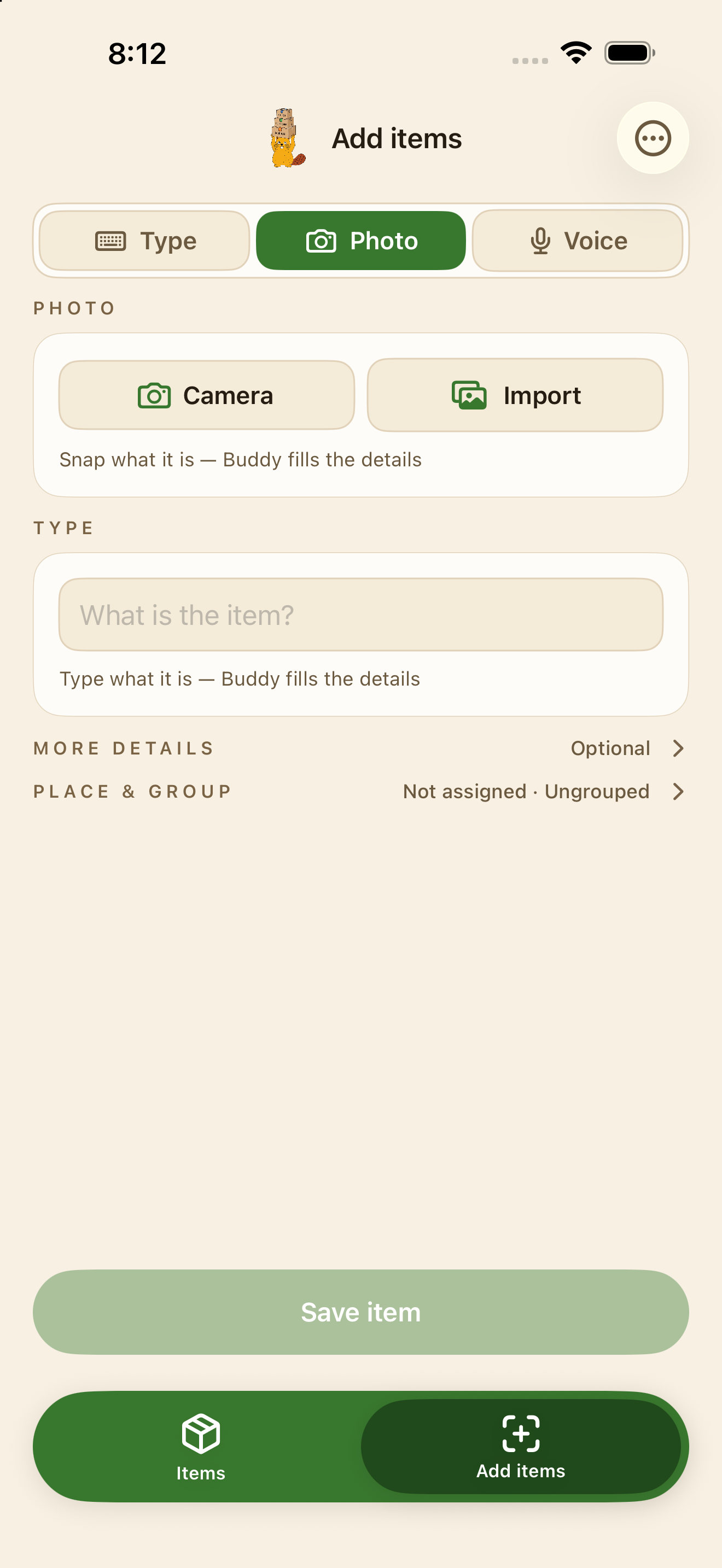
Open Add items and choose how to start: Type, Photo or Voice.
Photo — Use the camera or import from your library. On supported Apple Intelligence devices, Buddy suggests the items it sees. Review them one card at a time, fix anything that needs a look, then Save them all at once. “Apply Person & Category to all” saves retyping.
Voice — Say what it is. Buddy turns your words into the item’s name, colour, category and notes, on your device.
More details — Person, Packed as (box, container, bag, suitcase, picture or item only), Category and Notes. Person and Category suggest names you’ve used before; tap one to use it.
Place & group — Where it’s going, which group it belongs to, its box number, and Open first for the kettle and bedding you’ll want on night one.
Places, groups and items
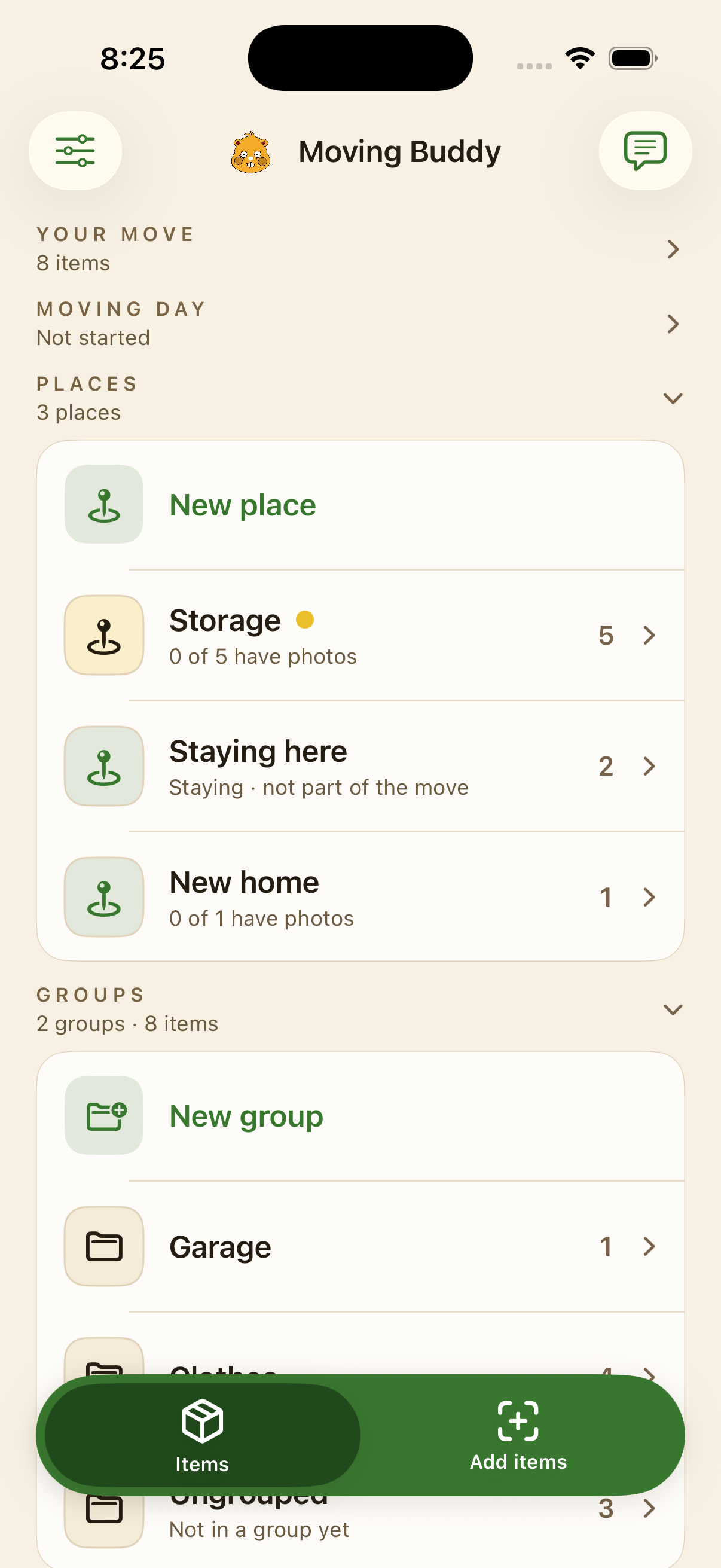
Places are where things are going — the new home, storage, a friend’s garage. Groups are a room, a person, or a kind of thing. Each item can have both.
Open a place or group to see what’s in it. Tap its title to rename it, and give it an icon and colour. Long-press a row to rename or delete. A place can be pinned on the map.
Open any item to edit it, or to add more photos and short video clips.
Add the Moving Buddy widget to your Home Screen to jump straight to your items or Add items.
Find anything
On Items, pull down to Find. It searches names, people, categories, notes, groups, places and box numbers — type “box 12” to see what’s in box 12.
Your move: review and save a copy
Your move at the top of Items counts what’s left to finish: items without a name, without a photo, that need a look, or without a place.
Review takes you through them one at a time. Save a copy exports one place or everything — see Copies and backups.
Moving day
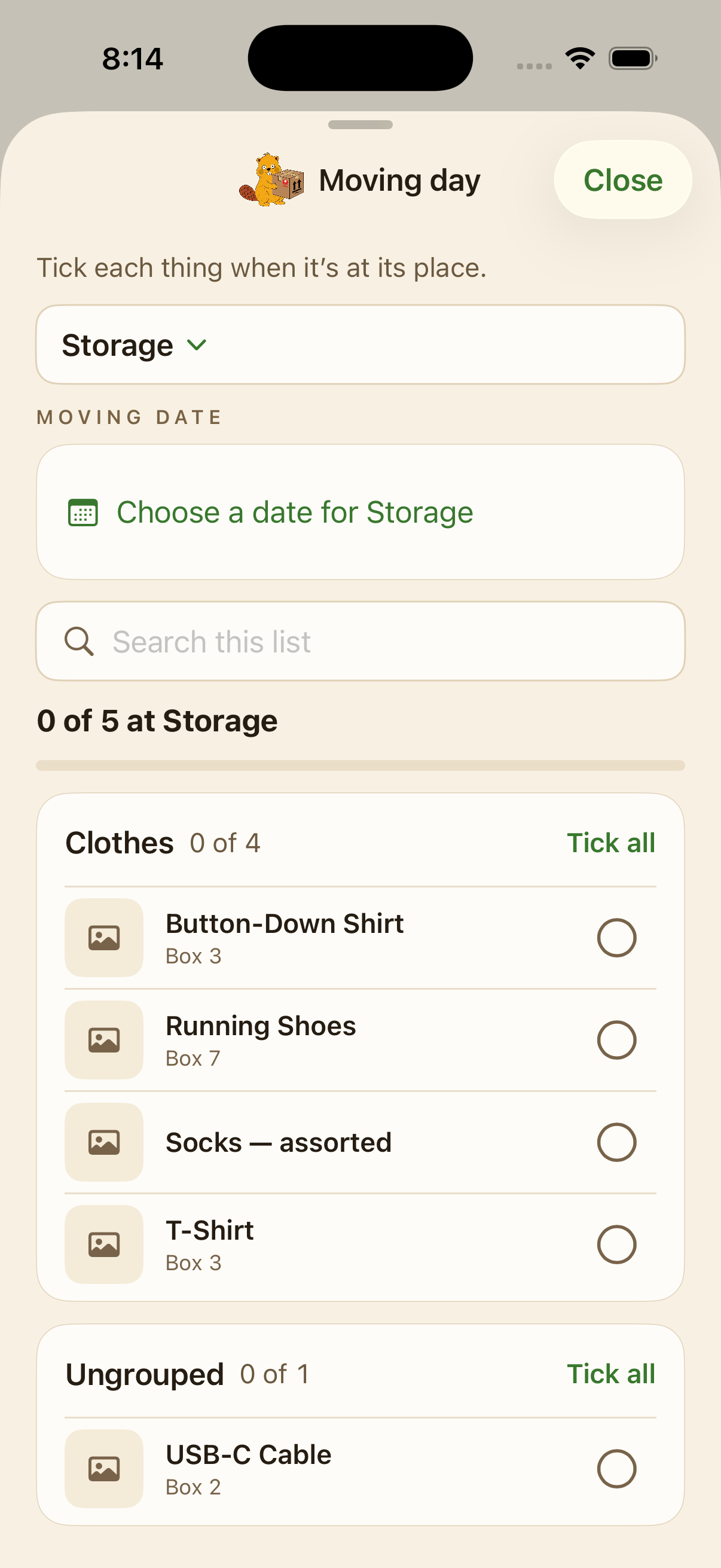
Open the Moving day checklist and pick a place. Set its moving date if you like.
Tick each item as it arrives. Tick all has an exact Undo, finished groups fold away, and search finds a single item fast.
Staying places — Mark any place that isn’t moving. Its things stay in your inventory but leave every moving total.
Ask Buddy
Tap the speech bubble on Items and ask in plain words — “where are the winter coats?” Tap a result to open the item with its photo.
On supported Apple Intelligence devices, Buddy answers on your device. You can instead connect your own compatible server (Ollama or LocalAI) in Settings. Without either, Buddy does a keyword search.
Final photos
An optional album of how you left each place. Turn it on in Settings → Tools → Final photos.
Add places and their rooms — Quick add suggests common rooms. In a room, take photos or short clips, or add as many as you like from your library. Photos keep the date they were taken, and a photo that’s already in the album isn’t added twice.
Open a photo to move it to another room or add a note. Share the whole album as one ZIP with a spreadsheet of dates.
Copies and backups
Import — Bring in an Excel or CSV list. Each sheet becomes a group.
Export — Excel, CSV or a printable PDF are text reports; a photo ZIP holds the pictures and clips.
Backup — A .movingbuddy file is the only copy that restores everything, photos included. Restoring replaces what’s on the device, so it asks first. Find all three in Settings → Import & export.
App lock and privacy
Turn on Settings → Privacy → App lock to require Face ID, Touch ID or your passcode whenever you come back to the app.
There’s no account. Your inventory stays on your device unless you export it, back it up, or connect your own server. Privacy details.
Free and Moving Buddy Full
My Moving Buddy is free for your first 30 items. Moving Buddy Full is a one-time purchase that removes the limit — no subscription.
Whatever you’ve saved always stays viewable, searchable and exportable, paid or not. Unlock from Settings → Moving Buddy Full, or when you reach the limit. On a new device, use Restore purchase on the same screen.
Questions
Do I need an account?
No. There’s no account and nothing to sign in to.
Does it work without Apple Intelligence?
Yes. Typing, photos, voice notes, search, places, groups, the moving-day checklist, imports, exports and backups all work without AI. Photo suggestions and Ask Buddy’s answers need a supported device or your own server.
What happens when I reach 30 items?
Everything you’ve saved stays. To add more, unlock Moving Buddy Full once. If you’re saving several items at once, Buddy keeps what you entered while you decide.
I bought Moving Buddy Full on another iPhone. How do I get it here?
Sign in with the same Apple Account, open Settings → Moving Buddy Full and tap Restore purchase. Family Sharing works too.
What’s the difference between an export and a backup?
Excel, CSV and PDF are reports to read or share, without photos. A .movingbuddy backup is the full copy — use it to move your inventory to another device or recover it.
Can I use it on iPad?
Yes, on iPhone and iPad with iOS or iPadOS 17 or later.
Your inventory is stored on your device. Apple Intelligence works on-device. If you choose your own compatible server, relevant content is sent there. You control exports and backups.
Requires iOS or iPadOS 17 or later. Apple Intelligence features require supported hardware, iOS or iPadOS 26 or later, and an available model for your language and region. Photo identification varies by device; check its suggestions. Voice transcription requires on-device language support.
Typing, search, places, groups, the moving-day checklist, imports and exports work without AI.
 My Moving Buddy